How Do You Keep AP Portal Submissions From Stalling?
Portal invoices stall on missing POs, logins and unclear status. Learn how to run portal work from one queue and keep proof of every status check.
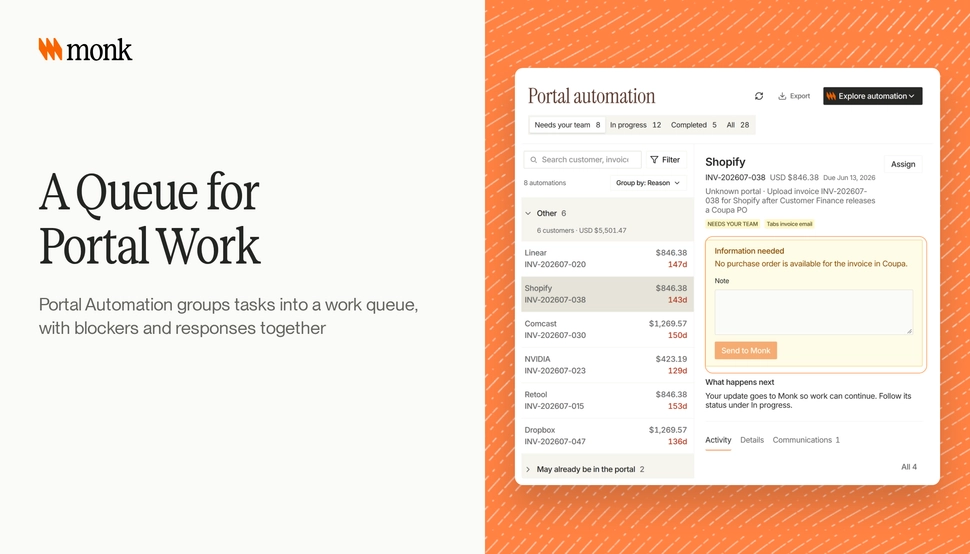
Run portal work from one queue, not one task at a time. Group every blocked submission with what it needs, such as a missing PO number, and let your team clear the blockers in bulk. Then keep evidence of every status check, so when a customer says they never got the invoice, you can show what the portal said and when. In Monk, Portal Automation now groups tasks into a work queue with blockers and responses together, lets you enter or bulk-upload missing PO numbers beside the queue, and records the status found on each check with screenshot or video evidence.
Explore the portal work queue
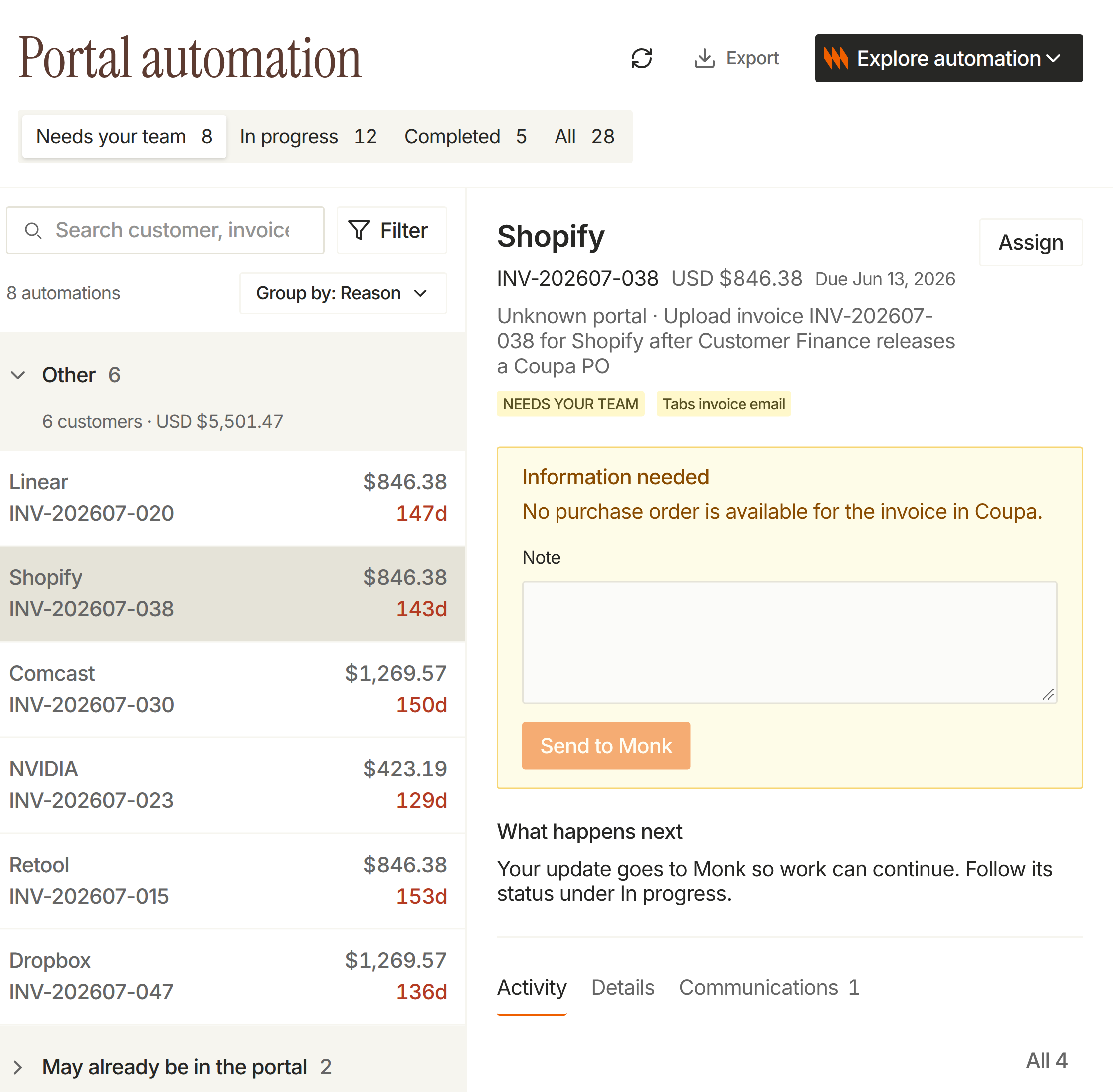
Start with the tasks under Needs your team.
Shopify's invoice is selected in the work queue.
Shopify's task shows a missing purchase order and a note field.
Why do portal invoices stall?
Each portal has its own login, fields and rules. Invoices stall for a handful of reasons:
| Blocker | What it looks like | What clears it |
|---|---|---|
| Missing PO number | The portal won’t accept the invoice without one | Get the PO from the customer or your records |
| Exhausted PO | The PO has no remaining balance | Ask the customer for a new PO |
| Login or 2FA | The portal needs a code or a reset | Someone on your team with access |
| Rejected invoice | The portal rejected the submission | Fix the field and resubmit |
| Unknown status | It was submitted, but nobody knows if it was approved | Check the portal and record what it shows |
For more on why invoices get turned away, see Why Invoices Get Rejected in AP Portals and What to Do When an Invoice Is Stuck in an AP Portal.
Why does a queue beat task-by-task work?
When blockers live inside individual tasks, your team opens them one at a time. Ten tasks missing a PO means ten clicks, ten lookups and ten updates.
A queue flips that. Group the work by what it needs. If 30 invoices are waiting on PO numbers, your team sees all 30 together, enters them in one place or uploads them in bulk, and the submissions move.
Here is a hypothetical example. A distributor has 40 portal invoices blocked on a Monday. Twenty-two are missing PO numbers, eight need a 2FA code and ten were rejected for a field mismatch. With a queue, the AR lead uploads a sheet of 22 PO numbers once, sends the 2FA requests to the right people and fixes the ten rejections. Without a queue, that is 40 separate tasks to open.
Why keep evidence of status checks?
Submitting is half the job. The other half is knowing what happened next.
When a customer says an invoice was never received, or an auditor asks when an invoice was approved, “we checked last week” isn’t enough. You need the status the portal showed, the time it was checked and proof.
Evidence also settles internal questions. If a task says “approved,” your team should be able to see the screenshot or video that shows it, not take the automation’s word for it.
What should you track for portal work?
- Blocked tasks by reason. Missing PO, login, rejection. This tells you where to push customers or fix your own data.
- Time blocked. How long invoices sit before someone acts.
- Status checks with evidence. The status found, when, and a screenshot or video.
- Exports. A CSV you can share with your controller or the customer.
How does Monk handle this?
Monk integrates directly with more than 600 corporate AP portals, and Monk uploads 87% of portal invoices autonomously, with its team handling the exceptions. The November 1 - 15 release made those exceptions faster to clear and easier to prove:
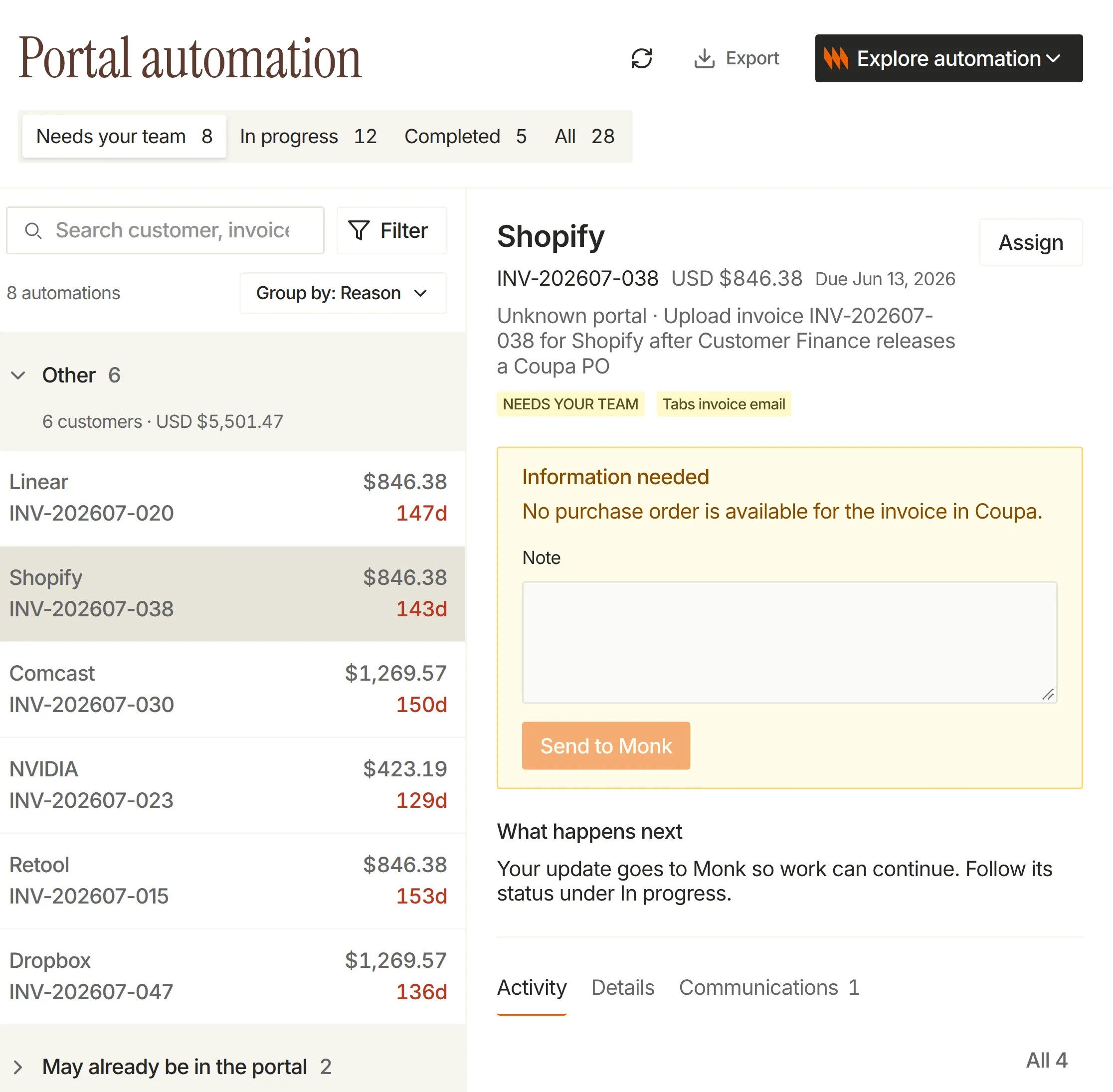
- A queue for portal work. Portal Automation groups tasks into a work queue, with blockers and responses together.
- Missing PO numbers, in bulk. Enter missing PO numbers beside the queue, or upload them in bulk instead of opening each task.
- Status checks with evidence. Portal task activity shows the status found during a check, the time it was checked, and screenshot or video evidence. Automated checks can include a run video, with its availability date shown alongside it.
- Run videos for your team. Accepted run videos are visible to your team, with playback speed controls and step markers.
- Export and search. Export portal tasks to CSV, and search portal tasks across all pages, not just the page you’re on.
These build on the October releases, which saved every portal step with a screenshot and sent email and Slack alerts when a task is blocked. For the full product, see Monk Portal Automation and the portals page.
Where should you start?
Pull every portal invoice that has been open more than 10 days. Sort by blocker. If missing POs are the biggest group, collect them in one sheet and clear them together. Then pick your five largest portal customers and confirm you have a recorded status check, with proof, for every open invoice.
Frequently Asked Questions
Why do AP portal invoices get stuck?
The most common reasons are missing or exhausted PO numbers, login or 2FA problems, rejected fields and submissions with no confirmed status.
How do you handle missing PO numbers at scale?
Group every invoice that needs a PO, then enter them in one place or upload them in bulk. In Monk, you can do this beside the portal work queue.
What is a portal status check?
It is a check of what the portal shows for a submitted invoice, such as received, approved or rejected. Monk records the status found, the time of the check and screenshot or video evidence.
Can my team watch what the automation did in the portal?
Yes. In Monk, accepted run videos are visible to your team, with playback speed controls and step markers.
Can I export portal tasks?
Yes. Monk exports portal tasks to CSV.
How many AP portals does Monk support?
Monk integrates directly with more than 600 corporate AP portals.
How much portal work does Monk automate?
Monk uploads 87% of portal invoices autonomously, with its team handling the exceptions.